---
title: Ad Gallery
description: Preview and experiment with high-impact ad experiences crafted in Adventive's ad builder, directly from the console.
---
[Skip to content](https://help.adventive.com/en/knowledge/ad-gallery#main-content)
[.svg)](https://adventive.com)
Open main navigation
Close main navigation
Hello. How can we help?
- There are no suggestions because the search field is empty.
1. [Knowledge Base](https://help.adventive.com/en/knowledge)
2. [Building Ads](https://help.adventive.com/en/knowledge/building-ads)
3. [Best Practices](https://help.adventive.com/en/knowledge/building-ads#best-practices)
# Ad Gallery
## Preview and experiment with high-impact ad experiences crafted in Adventive's ad builder, directly from the console.
**In this article you will learn:**
[How to Locate the Ad Gallery within the Adventive console](https://help.adventive.com/en/knowledge/ad-gallery#locate-gallery)
[How to Preview Ads from the Ad Gallery](https://help.adventive.com/en/knowledge/ad-gallery#preview-ads)
[How to Import Ads from the Ad Gallery](https://help.adventive.com/en/knowledge/ad-gallery#import-ads)
### How to Locate the Ad Gallery within the Adventive console
1. Log into your account.
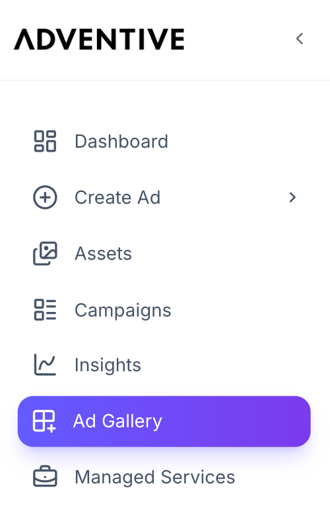
2. Navigate to the left side menu and select Ad Gallery, located just below Insights.
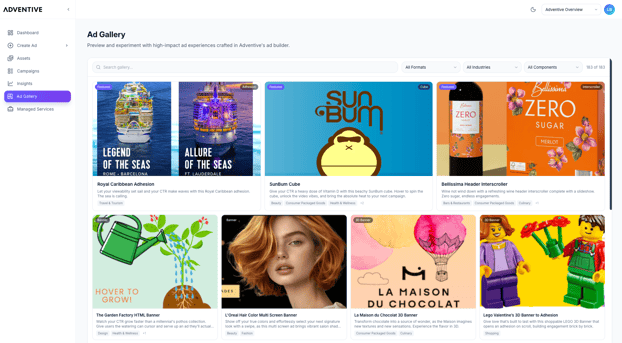
3. The Ad Gallery will load, and display demos of our Formats, Components, and industry-specific categories.
### How to Preview the Ads from the Ad Gallery
1. With the Ad Gallery open, navigate to the ad you would like to view the preview for.
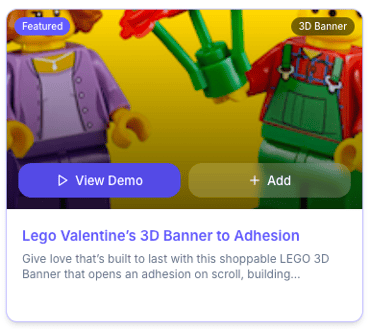
2. Click the title of the ad at the bottom of the thumbnail, or click View Demo by hovering over the thumbnail.
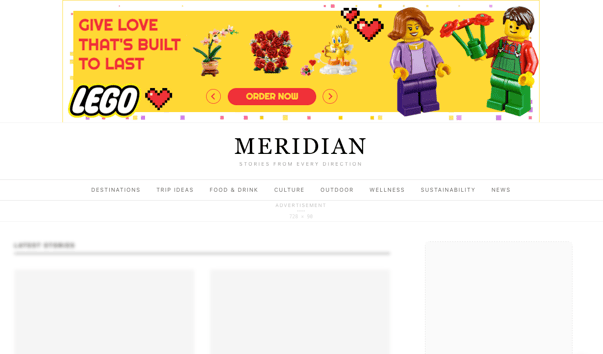
3. A new tab will open, and the ad preview will display on a live test page.
### How to Import Ads from the Ad Gallery
1. With the Ad Gallery open, navigate to the ad you would like to import.
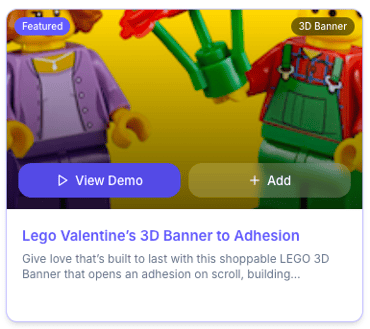
2. While hovering over the ad you would like to import, click the Add button.

3. The ad unit will then be imported and saved within the Rich Media Ad Builder, within the Adventive Testing advertiser in your account.
- [Account settings](https://help.adventive.com/en/knowledge/account-settings)
- [Payments and billing](https://help.adventive.com/en/knowledge/payments-and-billing)
- [Advertisers](https://help.adventive.com/en/knowledge/advertisers)
- [Building Ads](https://help.adventive.com/en/knowledge/building-ads#main-content)
- [Builder Basics](https://help.adventive.com/en/knowledge/building-ads#builder-basics)
- [Ad Formats](https://help.adventive.com/en/knowledge/building-ads#ad-formats)
- [Rich Media Components](https://help.adventive.com/en/knowledge/building-ads#rich-media-components)
- [User initiated actions](https://help.adventive.com/en/knowledge/building-ads#user-initiated-actions)
- [Tools](https://help.adventive.com/en/knowledge/building-ads#tools)
- [Embedded Players](https://help.adventive.com/en/knowledge/building-ads#embedded-players)
- [Best Practices](https://help.adventive.com/en/knowledge/building-ads#best-practices)
- [Adventive Services](https://help.adventive.com/en/knowledge/building-ads#adventive-services)
- [Campaigns & Trafficking](https://help.adventive.com/en/knowledge/campaigns-trafficking#main-content)
- [Third Party Tracking](https://help.adventive.com/en/knowledge/campaigns-trafficking#third-party-tracking)
- [Ad Tags](https://help.adventive.com/en/knowledge/campaigns-trafficking#ad-tags)
- [Delivery Groups](https://help.adventive.com/en/knowledge/campaigns-trafficking#delivery-groups)
- [Reporting](https://help.adventive.com/en/knowledge/reporting#main-content)
- [Reports](https://help.adventive.com/en/knowledge/reporting#reports)
[.svg "Logo - Dark (1)")](https://adventive.com)
Copyright © 2026, Adventive Tech Inc