.svg)
In this article, you will learn:
How Adventive's Managed Services Can Support Your Team
What Assets and Information Do I Need for Campaign Kickoff?
Recommended File Types and Sizes
How to Submit a Managed Services Request
How to View the Status of your Managed Service Request
How Adventive's Managed Services can Support Your Team
Whether you need support with overflow work or a team to manage the process from start to finish, Adventive’s Managed Services team is here to help. Services include:
- Expert guidance on ad formats and interactive components
- Strategic ideation tailored to your preferred ad offerings and campaign goals
- Professionally designed ads created by the Adventive team
- Campaign setup and implementation of all third-party tracking
- Preview links for review before launch
- One round of revisions included with each ad
- Guaranteed delivery of traffic-ready tags within 72 hours
- Periodic analytics reporting throughout the campaign
- Delivery optimization tips, as requested
What Assets and Information Do I Need for Campaign Kickoff?
To ensure we execute your design as intended, we recommend including as much detail as possible about your creative direction and campaign goals.
- Advertiser
- Brand and style guidelines for the advertiser (PDF or PPT recommended)
- Campaign name
- How many ads you'd like created
- Dimensions for each ad
- Ad formats, interactive components, and animations (if applicable)
- Image assets and logos
- Font files
- Video files, VAST URLs, YouTube, or Vimeo links for your preferred videos
- Text copy/messaging and CTAs
- Clickthrough links and third-party tracking
Recommended File Types and Sizes
Images
| Format | Use Case | File Size |
| PSD & AI | Layered Photoshop or Illustrator files are ideal for managed services. Include any and all image assets and placeholders for video (if applicable) in your designs, to ensure we receive high resolution, pre-approved layouts built to your ad specs. |
A high-resolution file built to your ad unit specs or standard banner specs, with a maximum file size of 50MB is recommended. Whenever possible, please use smart objects in your layered files. |
| PNG | Best used for product shots, design elements, CTA buttons, logos, custom typography, and transparent backgrounds. | A high resolution file, up to 10MB. *See note below |
| JPG | Best for full-color backgrounds and flattened images. | A high resolution file, up to 10MB. *See note below |
| SVG | Best for logos, text, iconography and CTA buttons. | A high resolution file, up to 10MB. *See note below |
| GIF | Animated assets best for quick, short, or looping sequences. |
Use the smallest image size without sacrificing quality, maximum 3MB. *See note below |
Video
| Format | File Size / Duration |
| .MP4, .MOV, .OGG, .FLV, .AVI, .OGV and .WEBM | 10MB with a duration of 15-30 seconds max. We can accept any ratio for video, but 16:9 is recommended. *See note below |
| YouTube, Vimeo or VAST |
3MB with a duration of 15-30 seconds max. We can accept any ratio for video, but 16:9 is recommended. *See note below |
* Note - All source files must comply with Chrome’s Heavy Ad Intervention policies to prevent ad units from being removed by the browser.
We will natively compress large image and video assets to help ensure your ad units stay loaded and the total output size remains under 4MB; however, all submitted video files must be 30 seconds or less. If a longer video is provided, we will need to either trim the file or limit autoplay functionality.
We are unable to control or reduce the file size of externally hosted video served through YouTube, Vimeo, or VAST tags. If you are providing an externally hosted video, please ensure the hosted file is compressed to 3MB or less, with a maximum duration of 30 seconds.
Please see our article Chrome's Heavy Ad Intervention for more information.
How to Submit a Managed Services Request
Below you will find a step-by-step process to submit a Managed Service request to the Adventive design team.
-
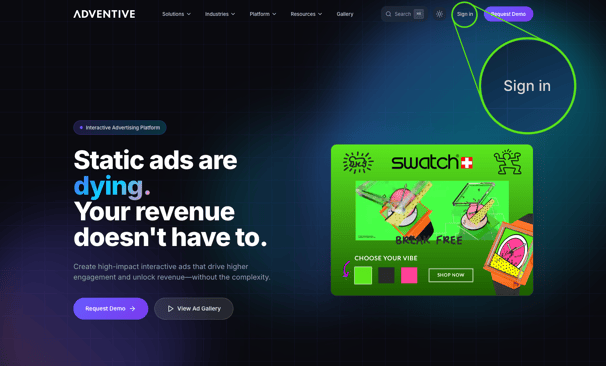
Navigate to Adventive.com and locate the Sign In button in the upper right corner:
- If you do not have an account, please contact support@adventive.com to get started with Adventive Managed Services.
- Once you have your account credentials, log into the Adventive console.
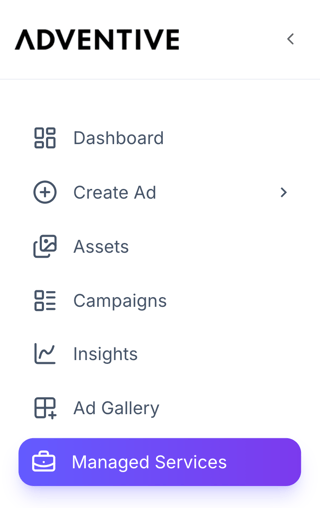
- Once you are logged in, you'll be presented with the Dashboard, and a navigation menu on the left side of the screen. Select Managed Services from the list:
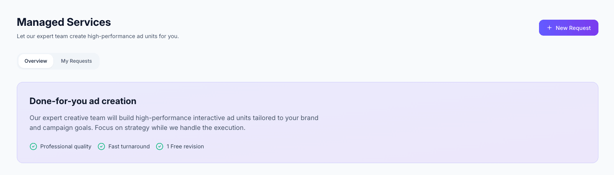
- Click the + New Request button in the upper right corner of the Managed Service screen to get started:
- Fill in the Managed Services request form to include all campaign details, assets, font files, messaging and CTA, info, clickthrough links/tracking, etc.
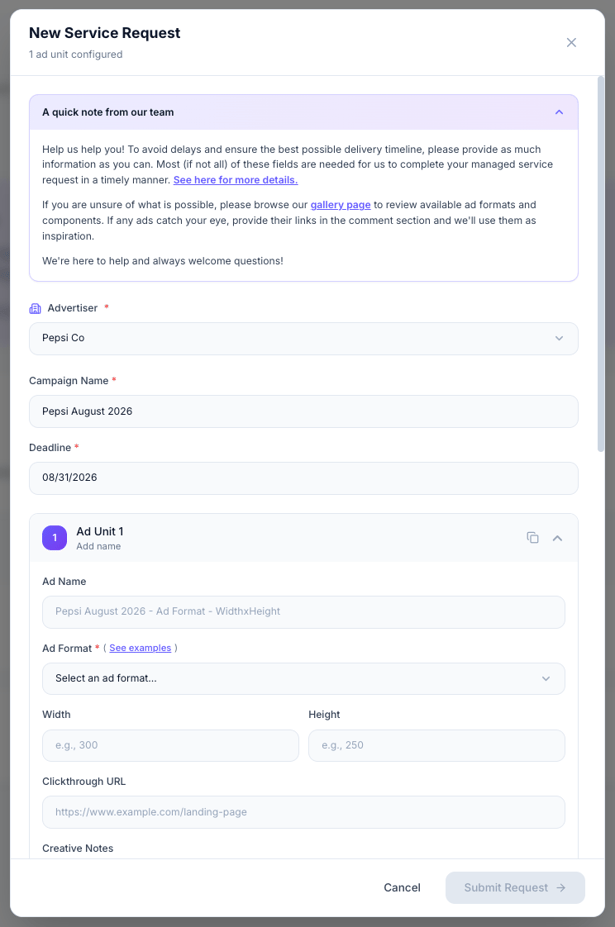
- Once you have completed the form, click Submit Request → and the request will be submitted to our design team for review.
Once you have submitted your request, you will receive a follow-up email with the details of your requested ads, and the design team will reach out shortly with any questions or notes.
How to View the Status of your Managed Services Request
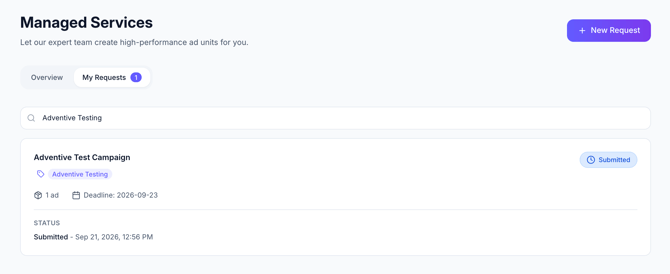
- Once your request has been submitted, navigate back to the Managed Services section and click the My Requests tab to the right of the Overview tab.
- You'll see any requests submitted in your account and their current statuses:
| Status | Description |
| Submitted | Request has been submitted and is in review. |
| In Progress | Designs are in progress. |
| Awaiting Feedback | We have provided the previews and tags for the ad units and are awaiting feedback. |
| In Revisions | Feedback has been submitted and revisions are in progress. |
| Complete | Ad units have been approved and and the creative tags are ready to be trafficked. |